Making campus
transit legible
for everyone
A contextual inquiry study into how Rutgers students navigate campus using RU Radar — and a prototype that rethinks the final mile from bus stop to destination.
RU Radar is useful —
until it isn't
RU Radar is an iOS-exclusive campus bus tracking app built specifically for Rutgers University students. It shows live bus locations, real-time arrival estimates, and route status. For a single-route trip, it's fast and reliable. But the moment a student needs to plan a multi-stop journey or figure out the last mile on foot — the app leaves them stranded.
The app has no destination search. No transfer planning. No walking directions after you step off the bus. Android users are locked out entirely. The result: students memorize routes, improvise on arrival, and supplement with Google Maps for everything RU Radar can't do.
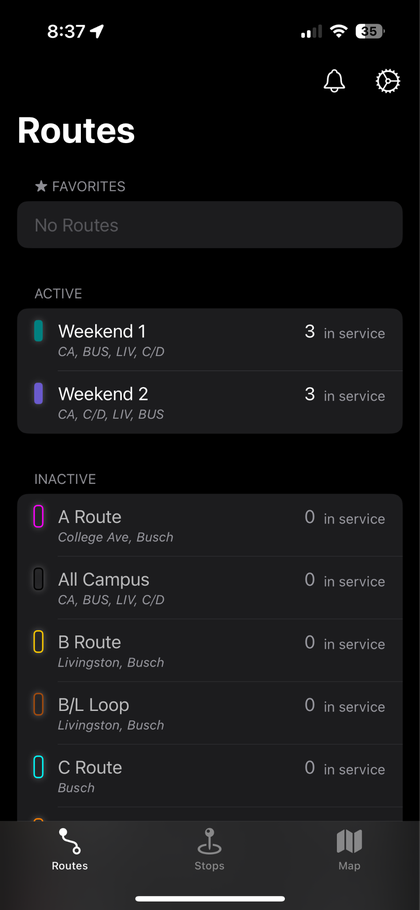
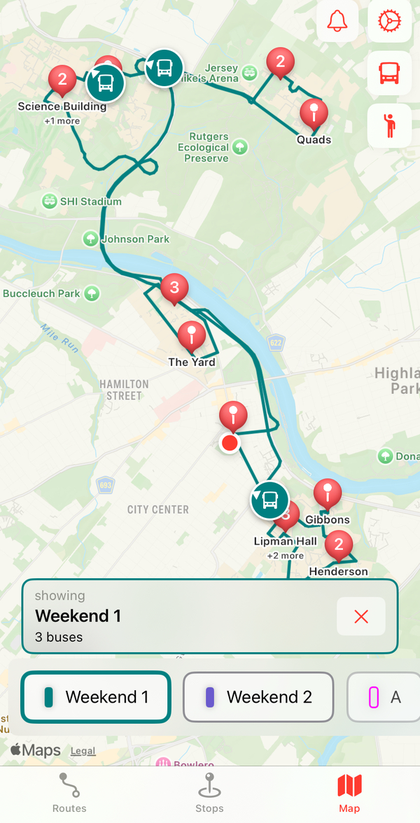
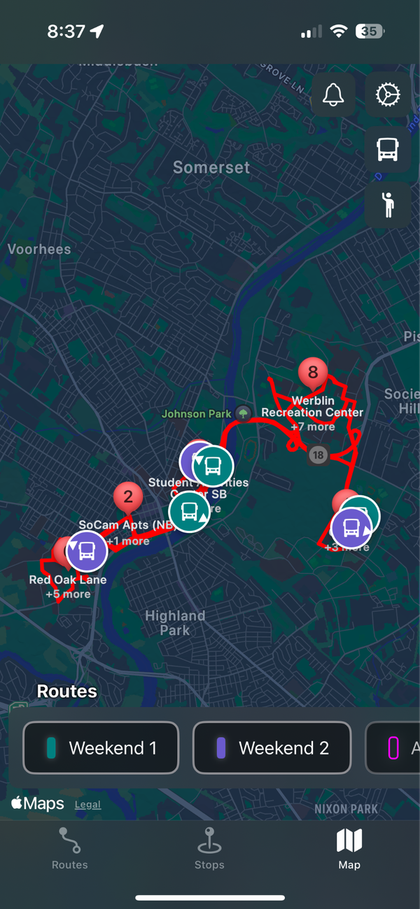
Current RU Radar UI — Routes list, live map (light), live map (dark)
Where RU Radar stands
- Live bus locations
- Clean, focused UI
- Rutgers-specific routes
- iOS only
- No destination search
- No transfer info
- Inaccurate ETAs
- Destination search
- Turn-by-turn walking
- Transfer planning
- Cross-platform
- Rutgers bus data often stale
- Not campus-aware
- Shows driver break status
- More accurate stops
- Complex UI
- Less familiar to students
- No walking directions
Phenomenological
contextual inquiry
We conducted a phenomenological study — exploring the lived experience of using RU Radar, not just measuring task success. Six Rutgers students were interviewed over Zoom, each walking through three structured tasks while thinking aloud. Interviews were recorded, transcribed, and interpreted as a team.
7 months at Rutgers · No car
1.5 years at Rutgers · No car
Near bus stop · Daily rider
Regular commuter · Has car
Near bus stop · Daily rider
Near bus stop · Frequent rider
Track routes EE, A, and B on RU Radar. Find the current position of buses and locate capacity info. This task tested the app's core function — the one it does best.
"It is easy to view, initially it was difficult, but once I got familiar with the routes, it got easy." — P2
Plan a trip from Rutgers University Inn to Busch Student Center — a single-bus route with no transfers needed. Most found this possible but slow due to no destination search.
"If it can show me the distance and ETA to walk to the nearest stop, it would be much better." — P1
Plan a trip from Rutgers University Inn to the SERC Building — requiring a transfer between routes. Nearly every participant found this task too difficult or impossible without Google Maps.
"It doesn't show me the buses I need to take to go from Rutgers Inn to SERC. I need to manually check which buses go there." — P1
What participants
told us
Across all six interviews, a consistent picture emerged: RU Radar is reliable for checking bus times, but completely breaks down when students need to go somewhere unfamiliar. The pain wasn't frustration with the app's core — it was the gap between "I know the bus is coming" and "I know how to get where I'm going."
The most frequently requested feature. Students can't type a destination and get a route — they have to manually find the right bus themselves.
The app's arrival estimates don't account for stops along the way or driver breaks — causing missed classes and missed connections.
Multi-stop trips require students to manually cross-reference routes. The app gives no guidance on where or when to switch buses.
After exiting a bus, students are on their own. No indication of which direction to walk, how far, or which entrance to use.
Android users — a significant portion of the student body — have no access to the app at all, forcing them to rely on Google Maps entirely.
Students must know route names (A, B, EE) before they can use the app. There's no way to search by campus or building name.
In Stage 3 interviews, four of six participants said they would prefer driving if they had a car — revealing that bus reliance is driven by necessity, not preference. The most common requested feature across all participants was destination-based trip planning, followed by improved ETA accuracy.
Interpreting
the evidence
After interviews, the team synthesized findings using an Affinity Diagram and a Day-in-the-Life model — two research tools that help transform individual observations into shared patterns.
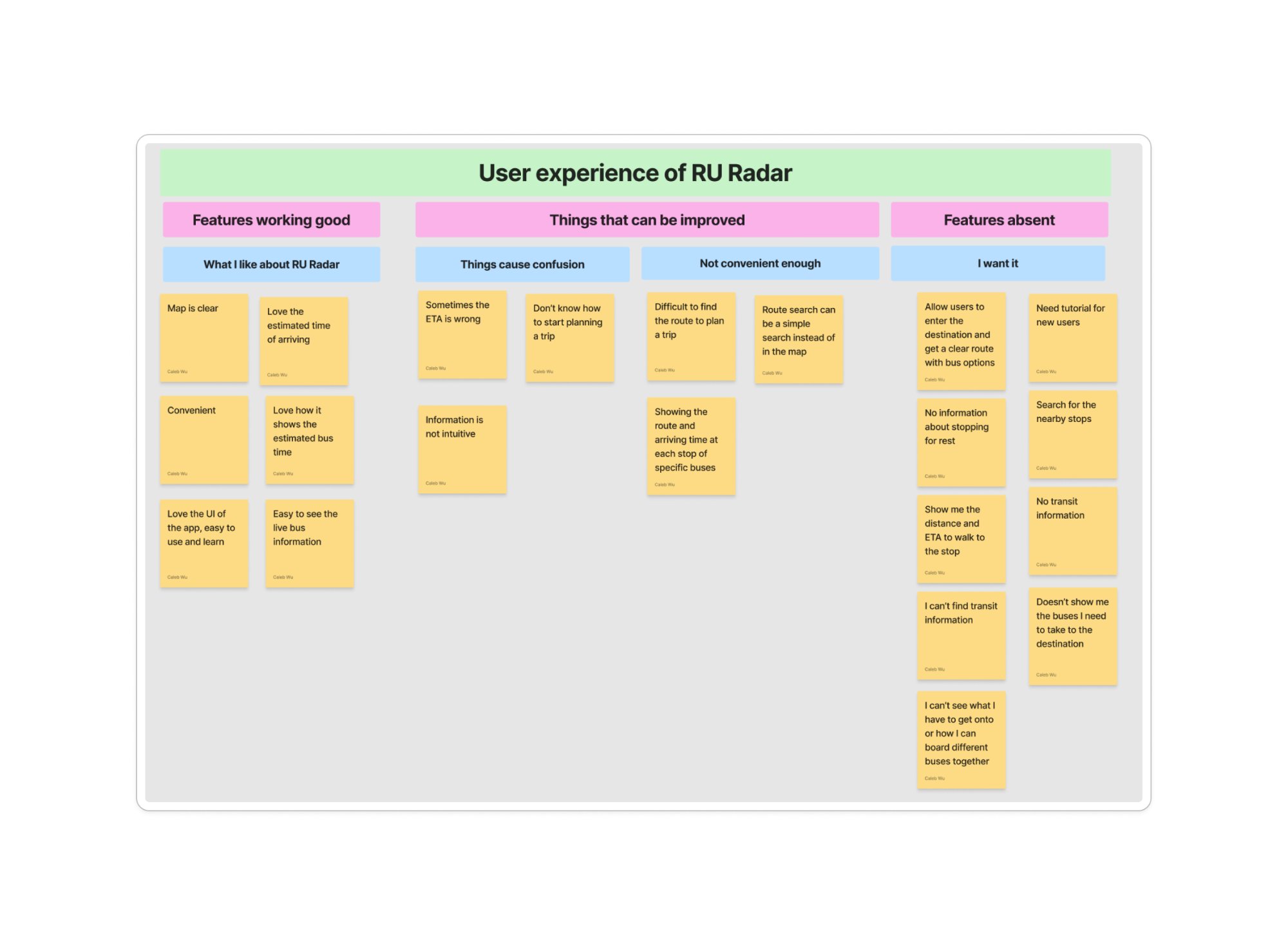
Affinity diagram clustering interview notes across 4 thematic columns
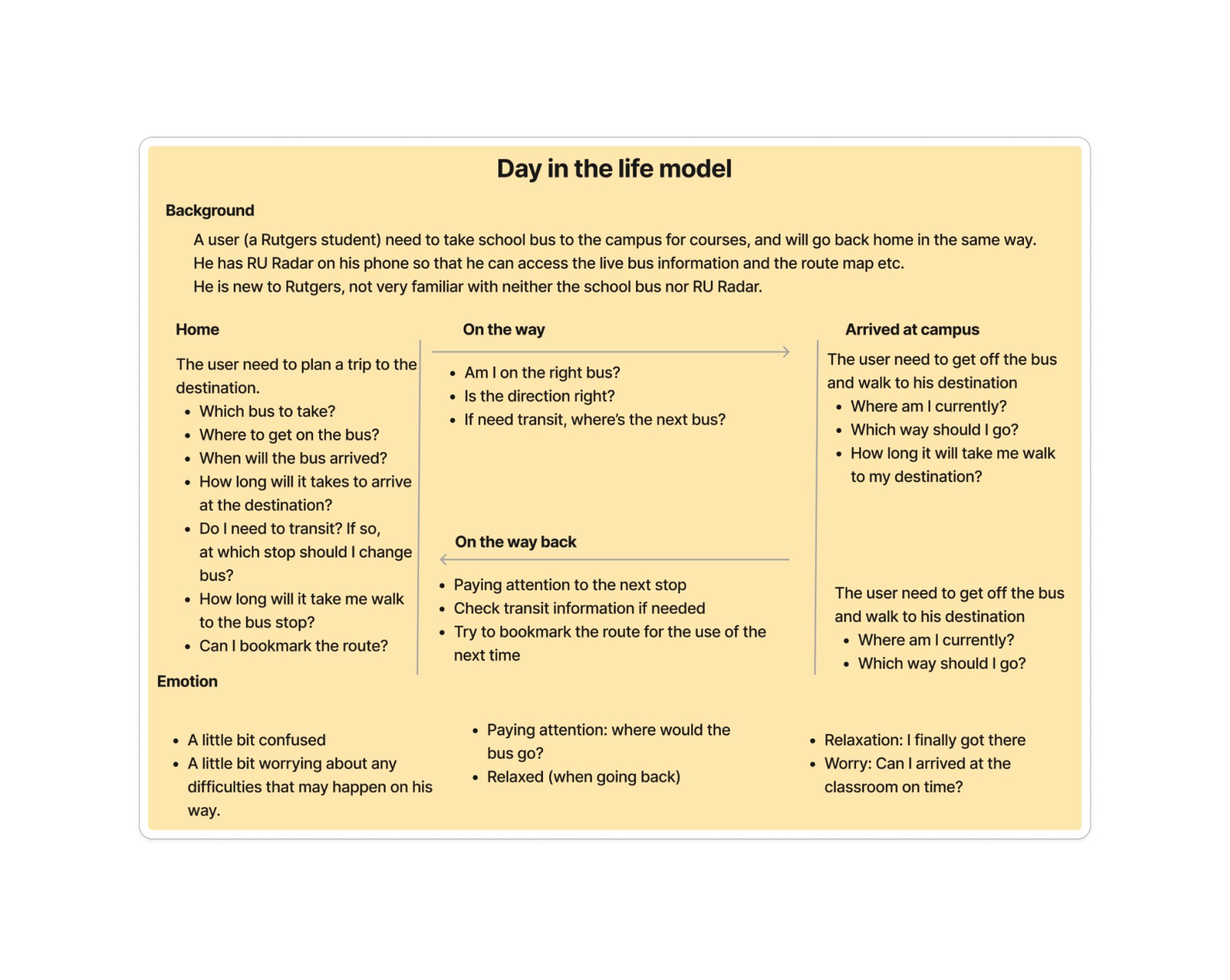
Contextual model showing how RU Radar fits — and fails — across the full commute journey
Students consistently reach a dead-end after getting off the bus. The app's job ends at the stop — but the student's journey doesn't.
The app requires students to already know route names. New students spend weeks learning the system before RU Radar becomes useful.
Most participants use both RU Radar and Google Maps — RU Radar for live tracking, Google Maps for everything else. The app could close this gap.
"How might we extend RU Radar's helpfulness from the moment a student decides to travel — all the way to arriving at the right entrance of the right building?"
From insight
to opportunity
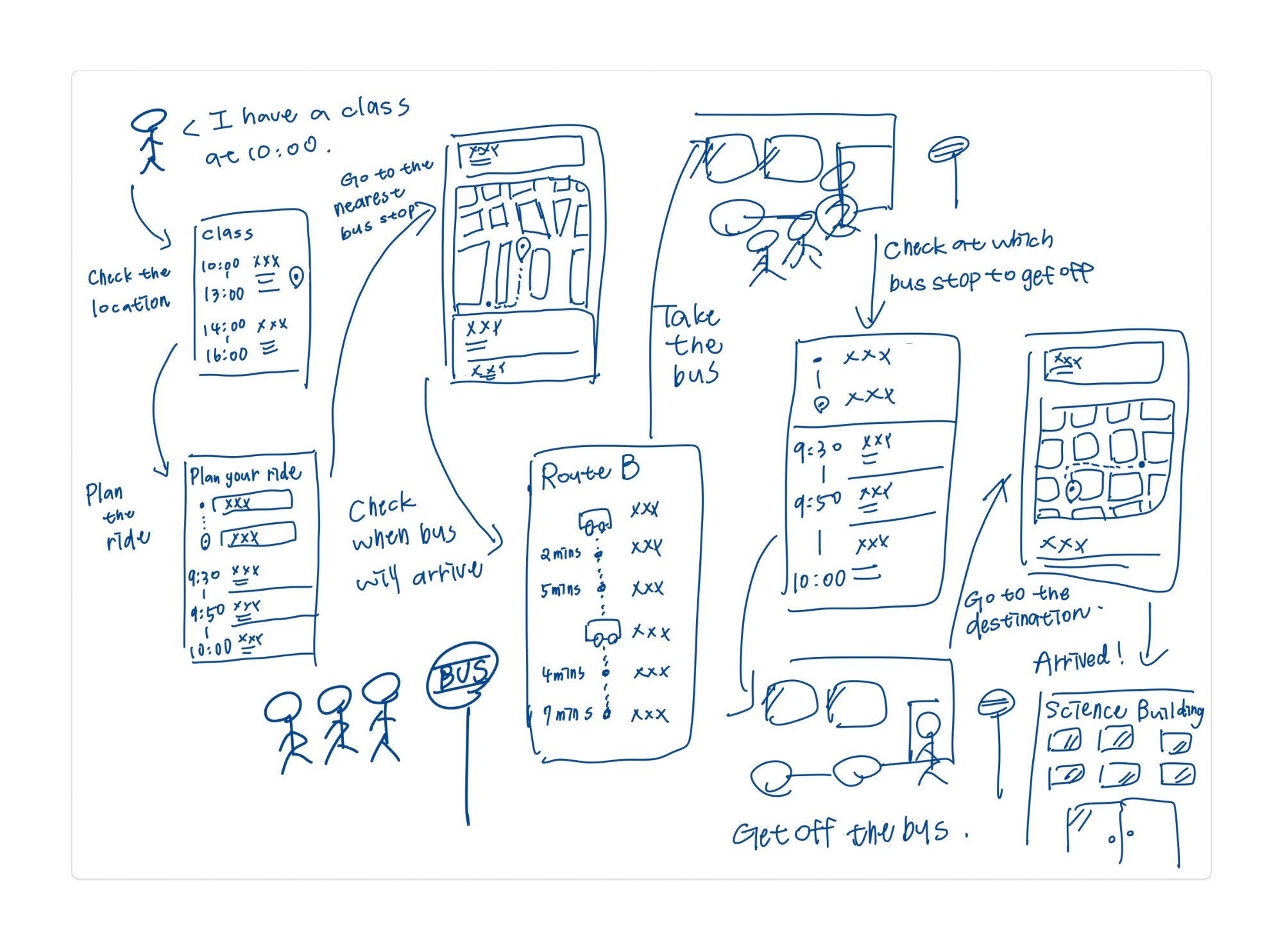
The storyboard below captures the core user journey we designed around: a student deciding to catch a bus, wondering which one to take, boarding successfully, and then facing confusion again at the destination. Each design opportunity addresses one moment in this story.
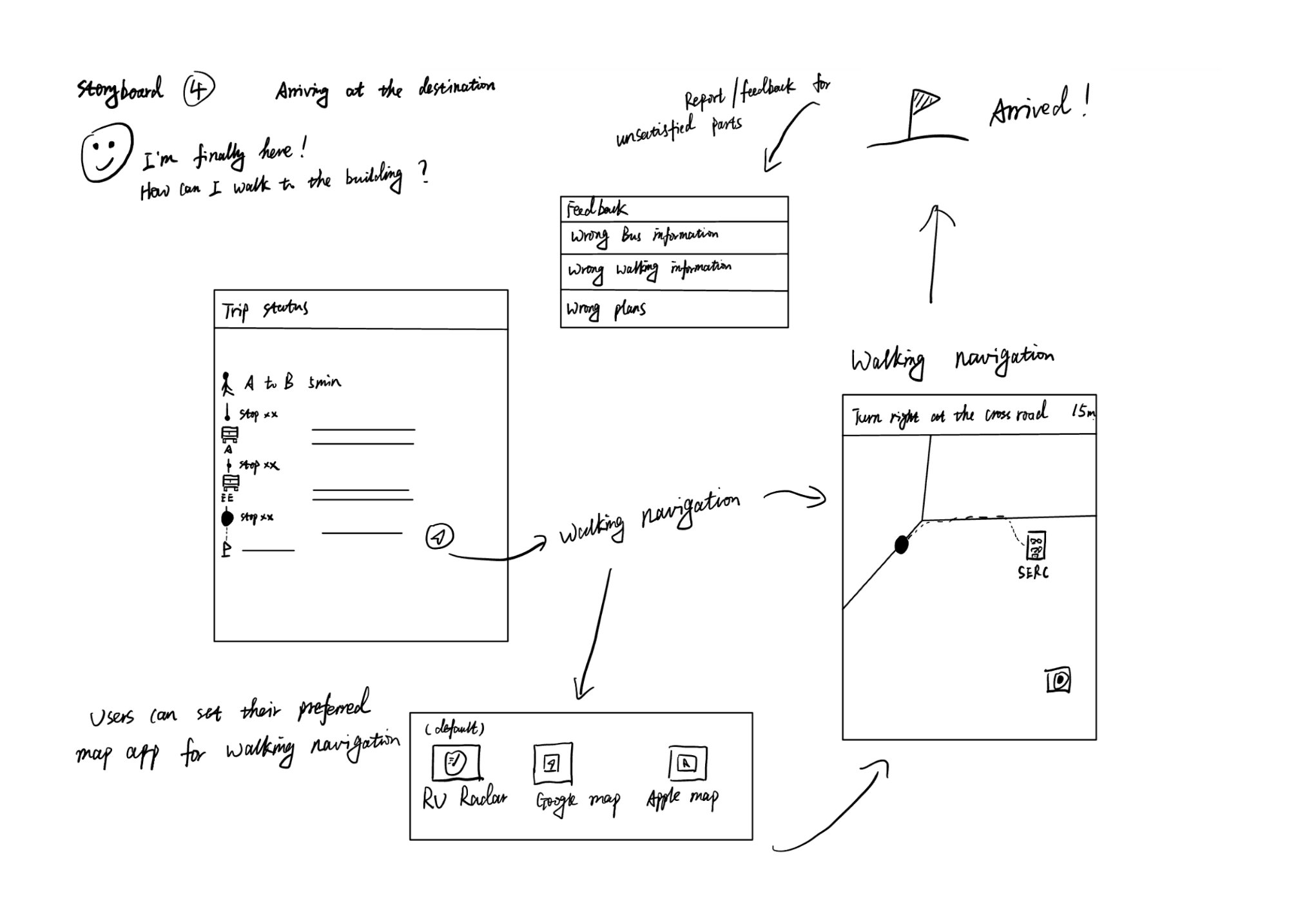
We developed four storyboards mapping distinct moments in the student journey — from first deciding where to go, to comparing route options, riding the bus, and finally navigating the last mile to their destination.
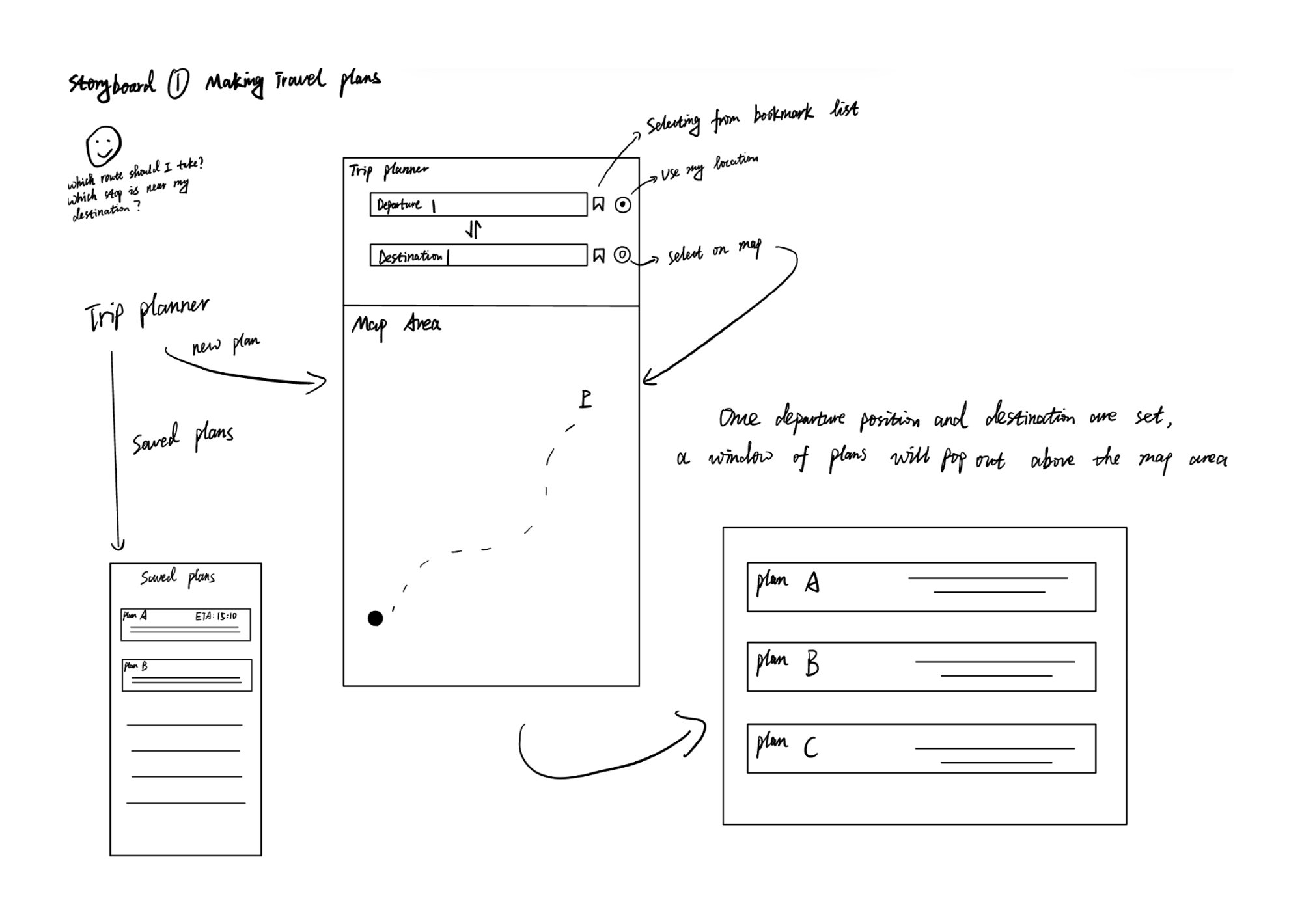
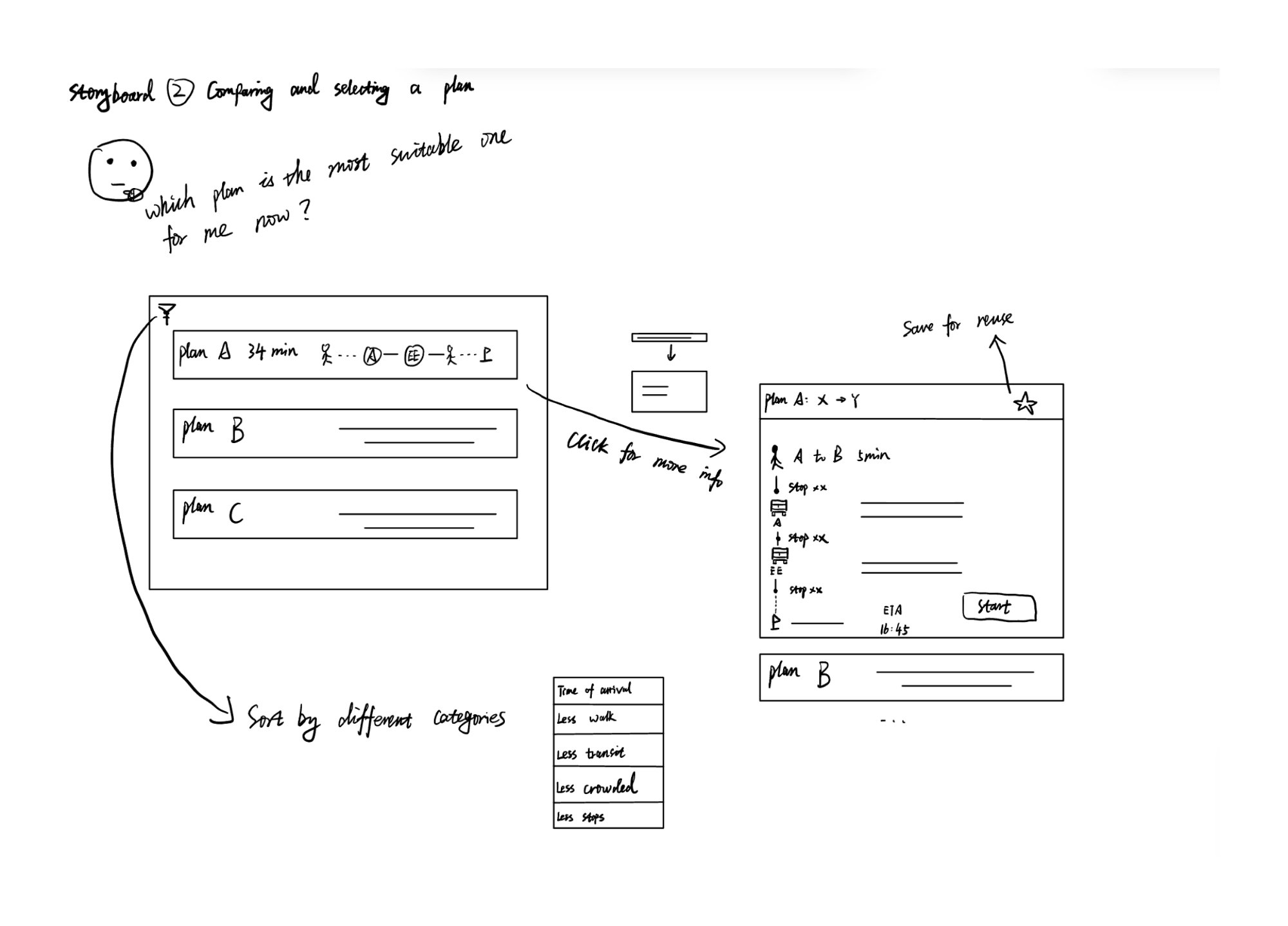
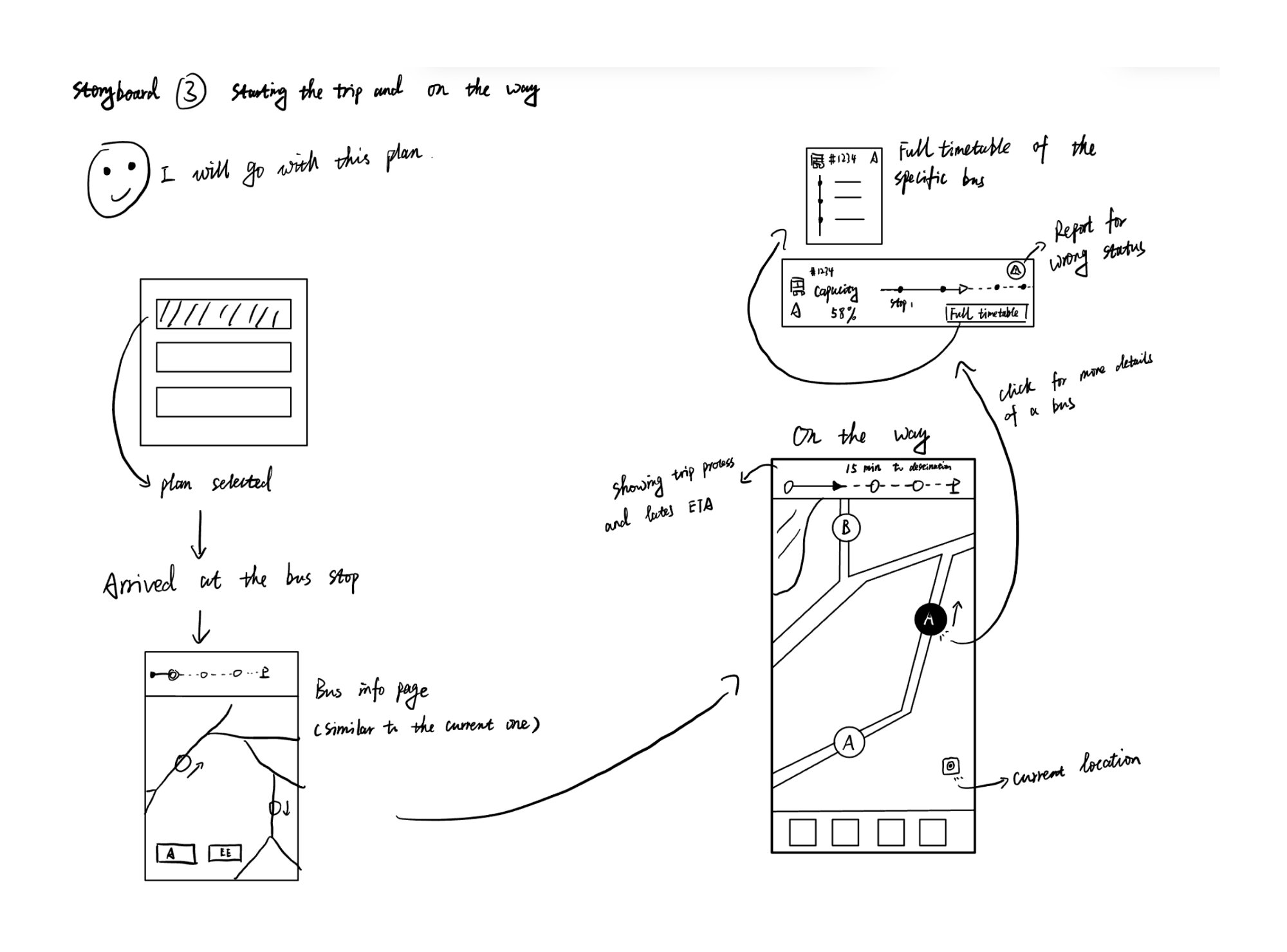
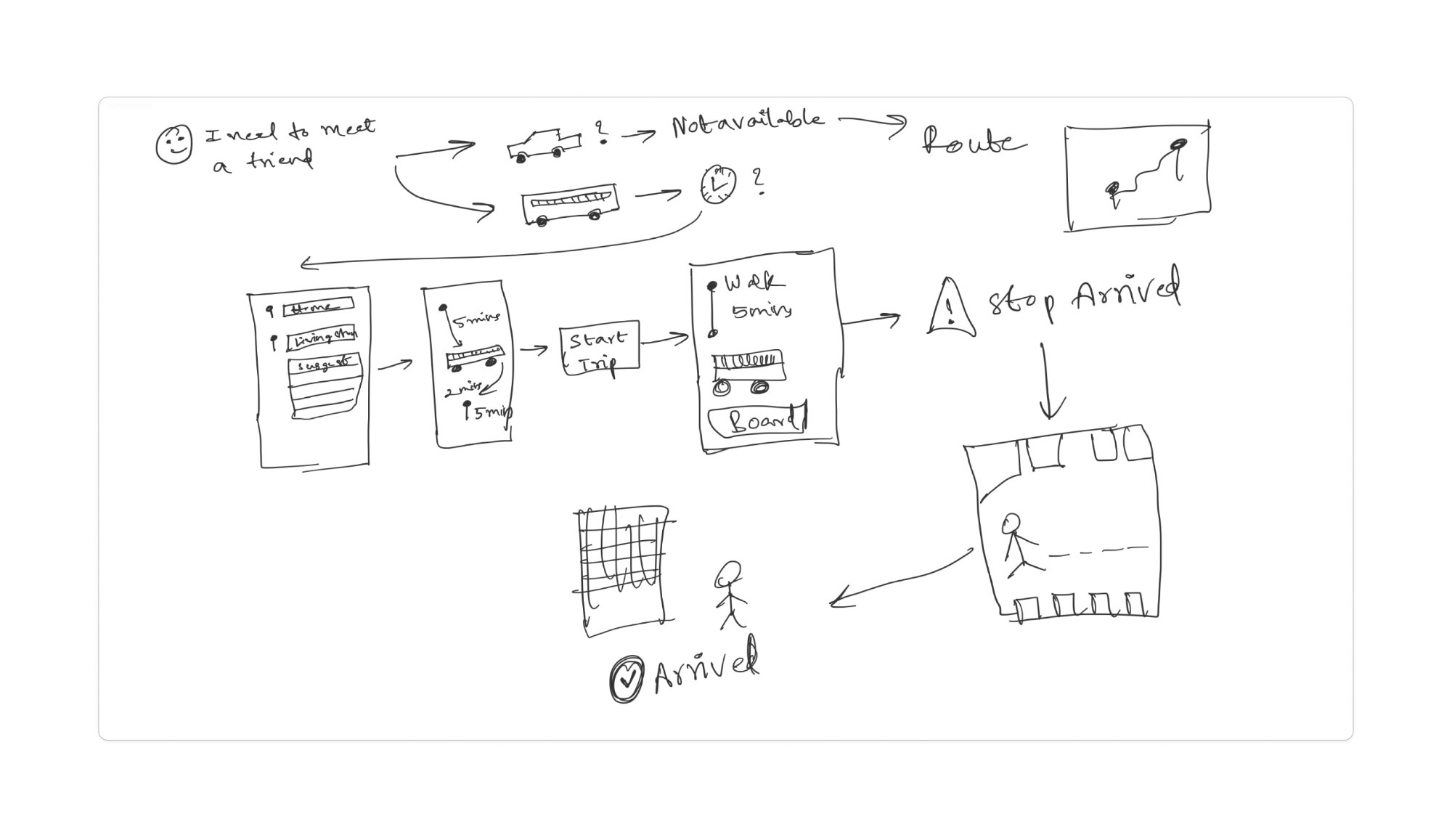
Before finalising the prototype, the team sketched three vision boards exploring the complete user journey and system architecture — mapping how destination search, trip planning, live tracking, and last-mile navigation could all connect.
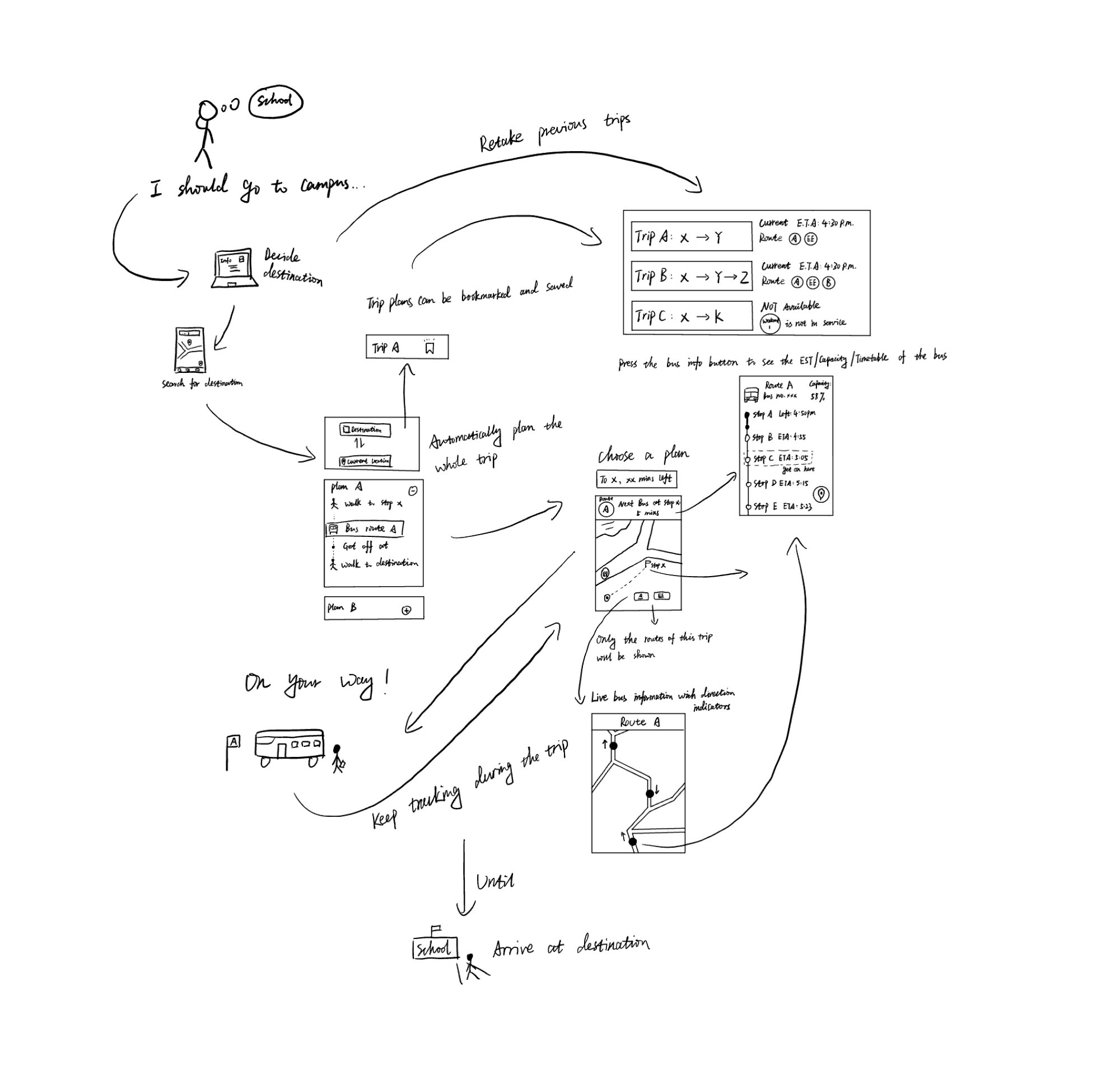
Let students type a campus building or destination and receive a complete bus route — including transfers — without prior knowledge of route names.
Once a student exits the bus, provide multiple walking route options (Fastest / Easiest) from the stop to their destination with ETA estimates.
Allow students to hand off to RU Radar, Google Maps, or Apple Maps for turn-by-turn directions — meeting them in the app they already know.
Enable students to report inaccurate ETAs, driver breaks not displayed, or bus overcrowding — building a feedback loop to improve data quality.
Four screens,
four solutions
The prototype was tested with two scenario-based interviews. Testers navigated trip planning and issue reporting tasks, and their feedback directly shaped the design iterations. Each screen addresses one identified pain point.
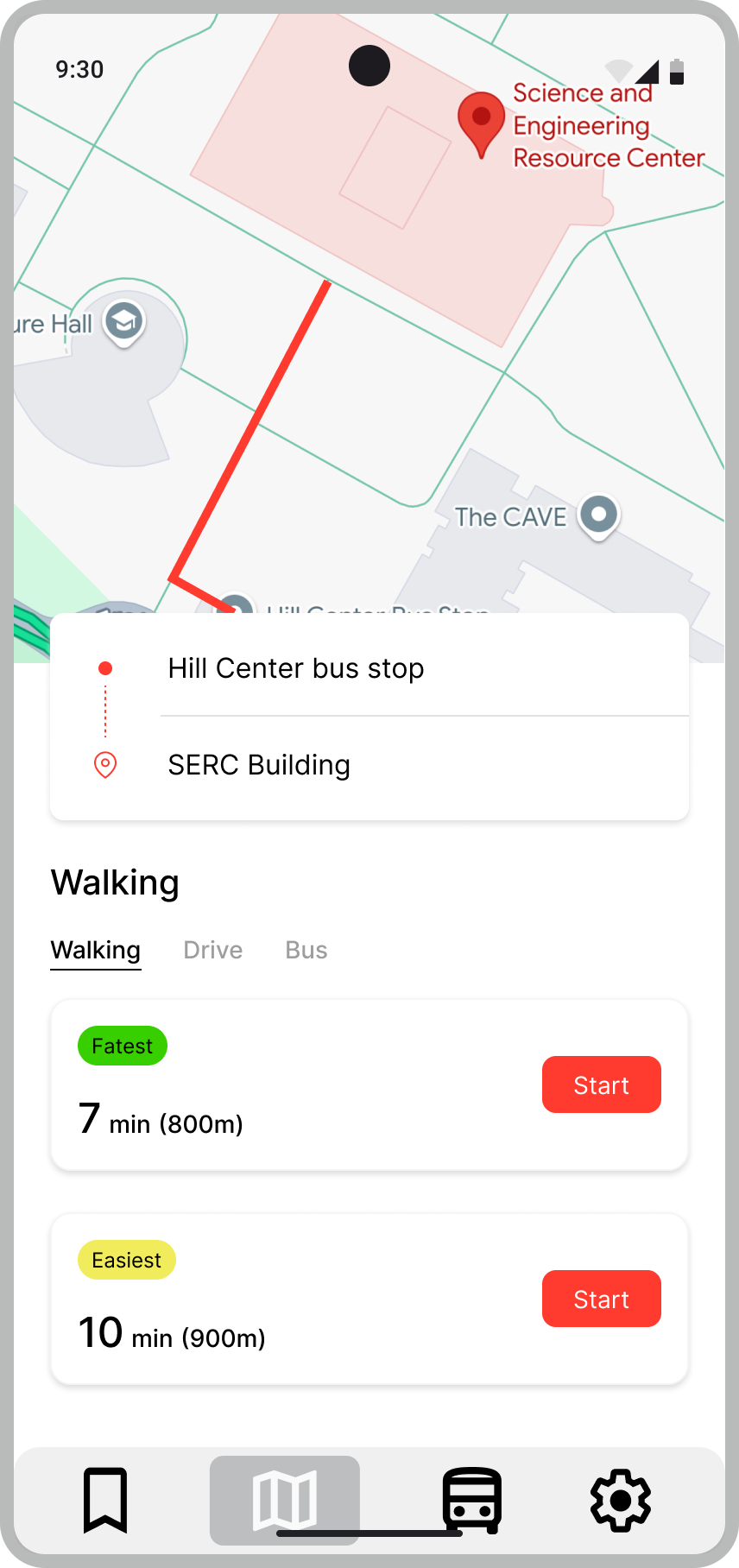
After alighting at the Hill Center bus stop, the app presents multiple walking routes to the destination — labelled Fastest and Easiest — with time and distance for each. No more guessing which direction to walk.
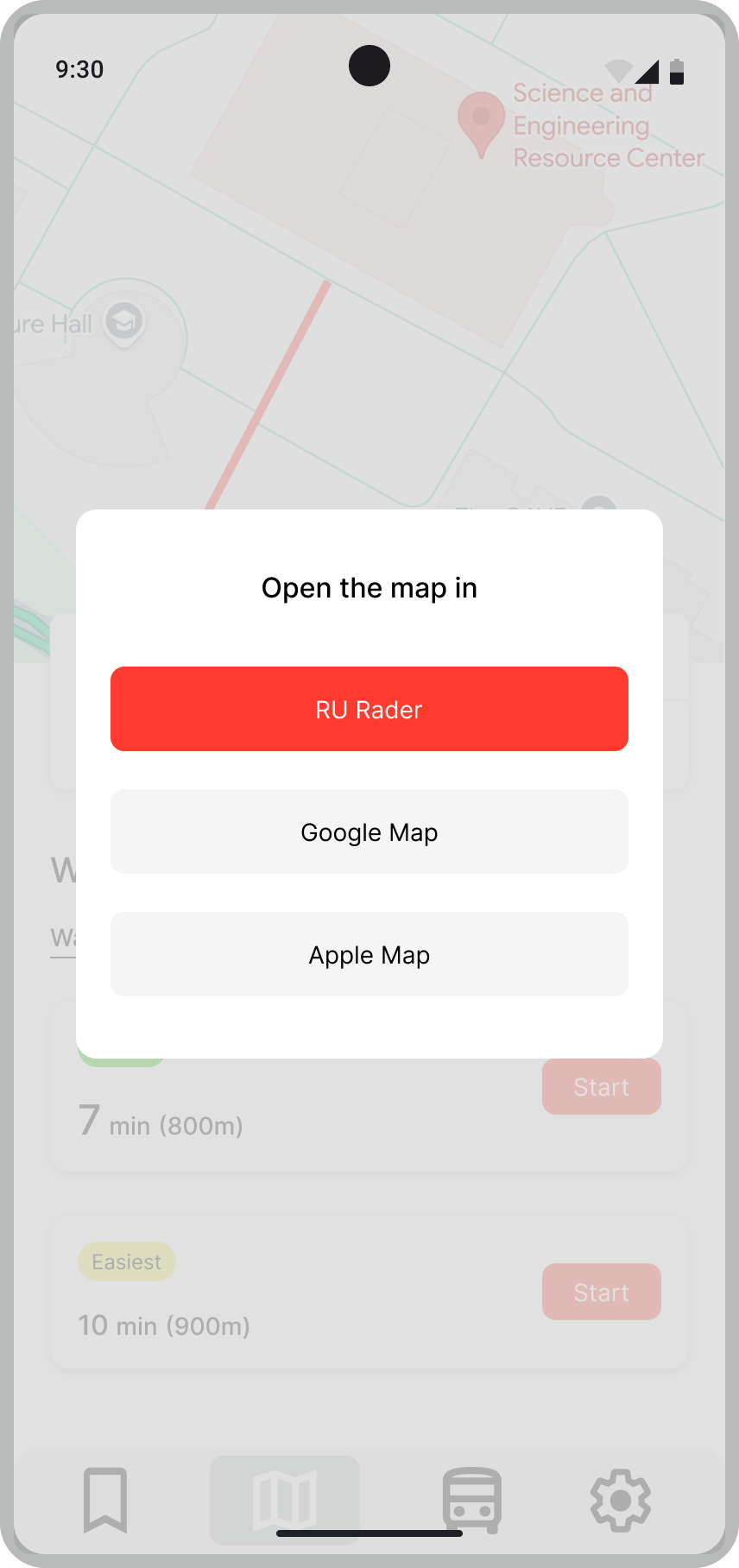
A contextual modal lets students choose their preferred navigation app for turn-by-turn directions. RU Radar is the default option — but students who trust Google Maps or Apple Maps can use those instead.
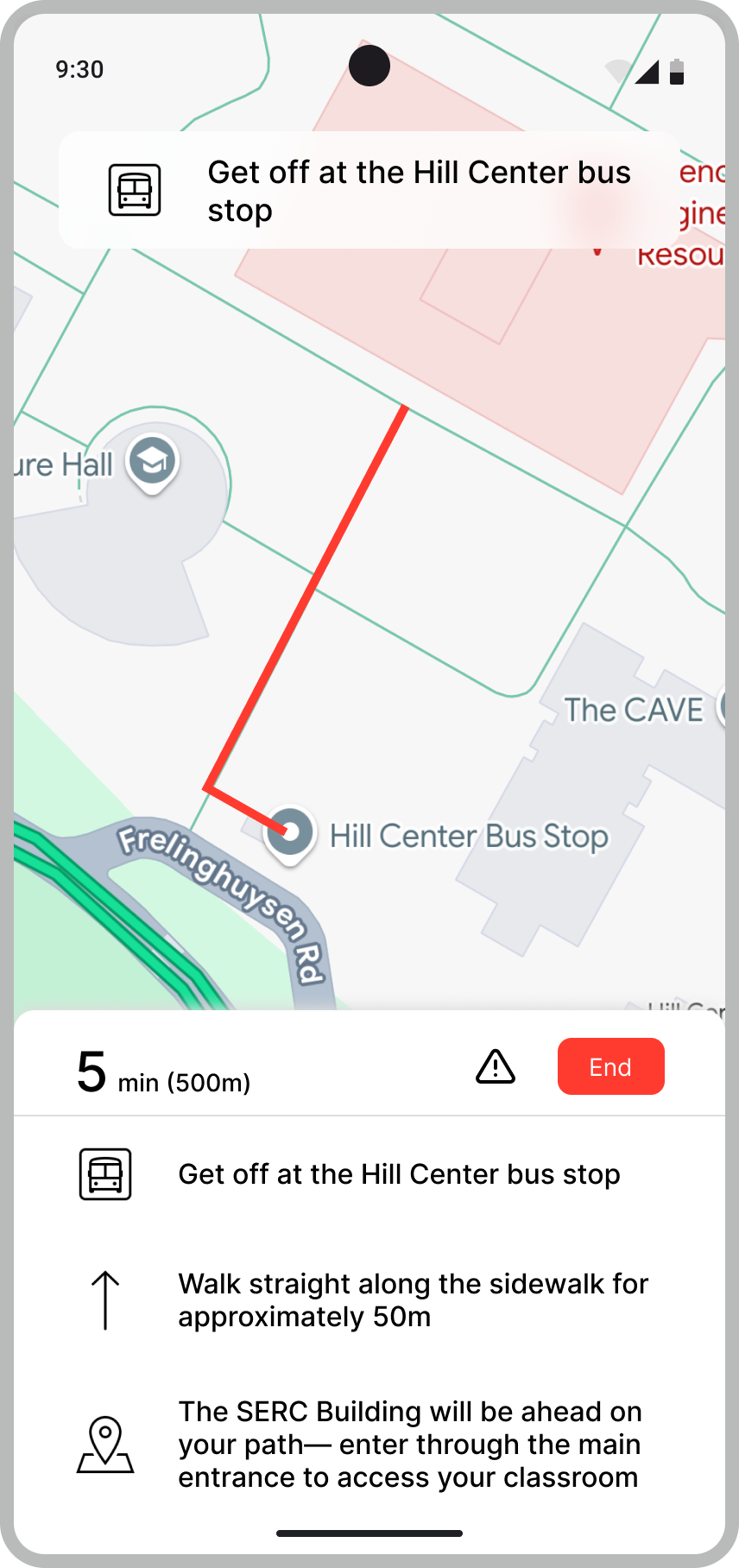
Clear, step-by-step walking instructions in plain language — "Walk straight along the sidewalk for approximately 50m. The SERC Building will be ahead of you." Removes all ambiguity from the final walk to class.
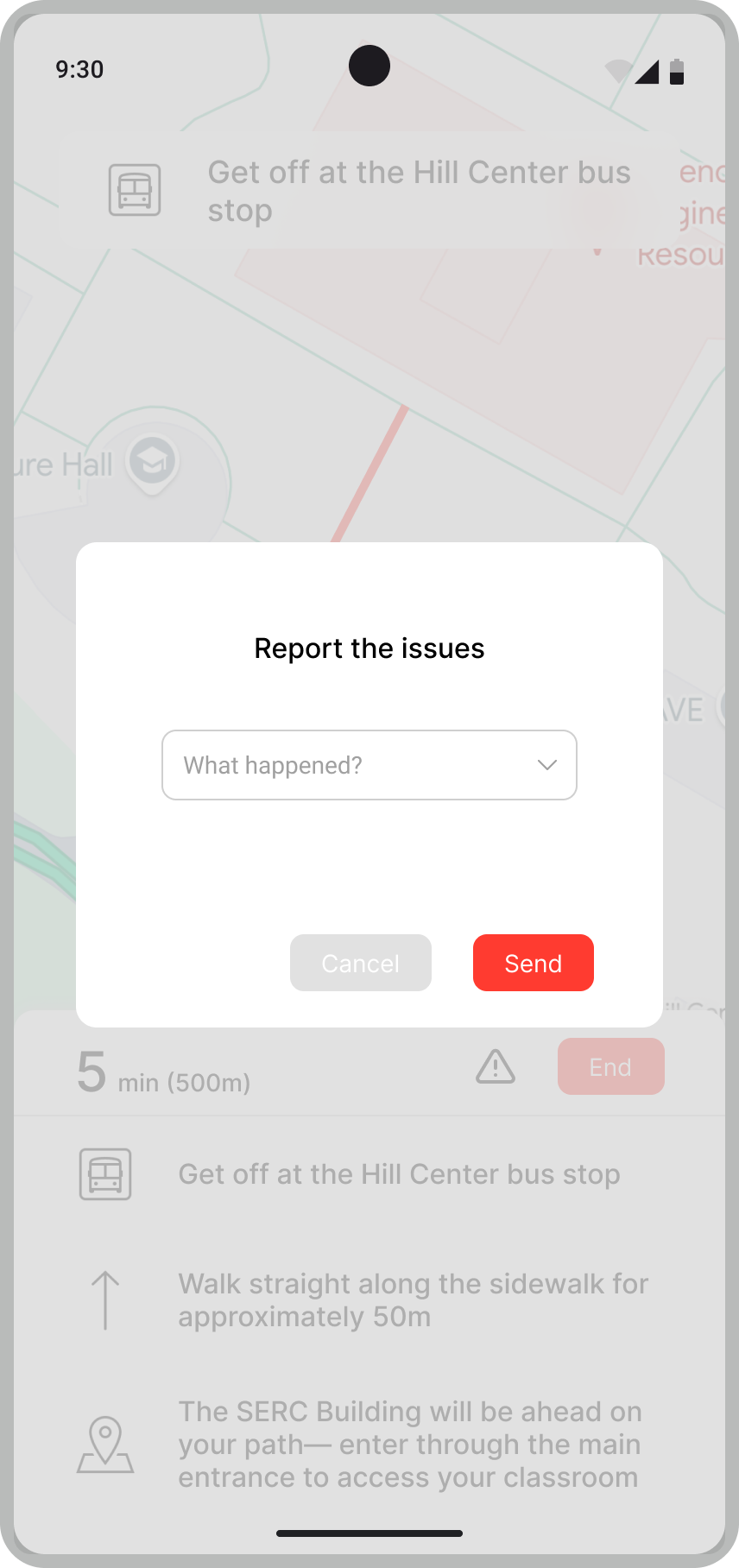
A lightweight modal lets students flag problems (inaccurate ETA, driver break, overcrowding) directly during their journey. Prototype testing revealed the need for a confirmation message after submission — an iteration made in response to user feedback.
What I learned
This was my first deep contextual inquiry study — not just asking users what they think, but observing what they actually do. The gap between what people say about an app and what they struggle with in practice turned out to be the most important thing we uncovered.
The fact that Task 1 was easy while Task 3 was nearly impossible told us as much as the interviews did. The app's mental model (routes first, destinations never) is misaligned with how students actually think about getting somewhere.
We built screens we were proud of — and testers immediately found edge cases we hadn't thought of. The "no clear exit button" and "no submission confirmation" were both surprises that made the final design better.
Students didn't want a new app — they wanted RU Radar to do what it does, and also hand off gracefully to other tools. The 3rd-party navigation integration came directly from realizing students already live in multiple apps.
Running the affinity diagram session as a team — not solo — surfaced patterns none of us had seen individually. The "no transit information" cluster emerged from five separate participants saying slightly different things that meant the same thing.
Contextual Inquiry 16:137:532 · Group 7 · Rutgers University · 2025
Conducted and moderated participant sessions, collected verbal and non-verbal data
Led team synthesis session to cluster interview notes into patterns and themes
Designed four prototype screens addressing the key journey gaps identified in research
Conducted scenario-based usability sessions with new testers to validate design decisions
Authored participant consent forms, interview protocol, and final research report
Analyzed transcripts for recurring themes, cross-participant patterns, and design implications