Making science's
most-used database
actually usable
A full UX redesign of the RCSB Protein Data Bank help section — tackling poor information architecture, WCAG accessibility failures, and navigation patterns that sent millions of researchers straight to Google instead.
01 — At-a-Glance
The problem,
the solution
The RCSB Protein Data Bank is the US repository for 3D structural data of biological molecules, visited by millions of researchers and students annually. Its help section — the primary support resource for a highly diverse user base — suffered from poor information architecture, accessibility gaps, and navigation patterns that failed both novice and expert users alike.
Problem
The RCSB PDB Help Page lacked clear organization, intuitive navigation, and accessible content, making it difficult for users — especially students and new researchers — to efficiently find the support they need. Many users bypassed the help section entirely, turning to Google instead.
Solution
A restructured information architecture with 8 logical categories, a search-first approach, hybrid progressive disclosure, and full WCAG 2.1 AA compliance — balancing the needs of expert researchers and first-time student users within a single system.
02 — My Role
Research, IA, Wireframing,
Prototyping & Testing
As one of four designers on the Rutgers UXD Practicum team, I contributed across the full design process — from shaping the research plan to validating the final prototype. This was the most research-intensive project in my portfolio: 16 weeks of structured UX process with real stakeholders and real constraints.
03 — Research
Two phases,
six methods
We used a mixed-methods approach across two phases — discovery and validation — spanning roughly 16 weeks. The goal was to understand not just what users said they wanted, but what their actual behavior revealed about the help page's failure modes.
| Method | What we studied | Sample | Phase |
|---|---|---|---|
| Typeform Survey | Help page usage, search behavior, content preferences | 20+ respondents | Discovery |
| Google Forms Survey | Quantitative usability + satisfaction ratings | 15 respondents | Discovery |
| Stakeholder Interviews | Moderated sessions with active PDB users | 5 participants | Discovery |
| Unmoderated Testing | First-click tests via Optimal Workshop | 15 participants | Validation |
| Competitive Analysis | UniProt, PDBe, Ensembl, NCBI help sections | 4 competitors | Discovery |
| A/B Prototype Testing | Two help page layouts compared in Figma | 3 moderated sessions | Validation |
How Might We
"How might we redesign the RCSB PDB help page so that both novice students and expert researchers can efficiently find the support they need — without compromising on depth or accessibility?"
04 — Key Findings
What the data
told us
Usability Issues Identified
Voices from Users
"Even though it's very robust, it's very clunky. Once I find something I write it down and have my students repeat it."
— Chemistry Professor, Wayne State University · Usability testing participant
"The current help page is overwhelming. I'd rather just Google it."
— RIT Student, Victoria Greever · Usability testing participant
05 — Design Process
Two personas,
one system
Research revealed two distinct user groups with fundamentally opposing needs. Designing a single help system that served both without condescending to one or overwhelming the other was the core design challenge.
Profile
- PhD or faculty level, uses PDB multiple times weekly
- Needs deep reference material, API docs, advanced search guidance
- Frustrated by poor searchability and inconsistent results
Goals
- Find specific technical documentation fast
- Access API reference without wading through beginner content
- Reproduce search queries reliably
Profile
- Undergrad or early grad student, infrequent PDB user
- Needs step-by-step guidance, visual cues, and FAQs
- Overwhelmed by information density and jargon
Goals
- Understand what the help page offers before diving in
- Find a specific answer without reading dense documentation
- Complete a class assignment without calling their TA
IA Overhaul
From 40+ unlabeled links
to 8 logical categories
The original flat sidebar had 40+ unlabeled links with no clear grouping. We restructured the help section based on user mental models surfaced through card sorting and tree testing.
Wireframing & A/B Testing
The split result that led to a
hybrid design
We prototyped two distinct help page layouts in Figma and tested them with 5 moderated participants. Help Page 1 used progressive disclosure (hover-to-expand), while Help Page 2 showed all links inline. Testing revealed a split preference — expert users preferred the density of Page 2, while novice users found Page 1 less overwhelming. The final design incorporated a hybrid approach: visible top-level categories with expandable sub-sections.
Accessibility Interventions
Accessibility as a design
constraint, not a checklist
06 — Visual Design Audit
Every issue documented
before a single pixel moved
As part of the research phase, the team conducted a systematic visual design audit of the existing RCSB PDB Help section. Every issue documented below was identified before any redesign work began, and each directly informed a design decision in the final prototype.
Starting point — the live help page before any intervention
Issue 01
Cognitive Overload — Gestalt & Whitespace
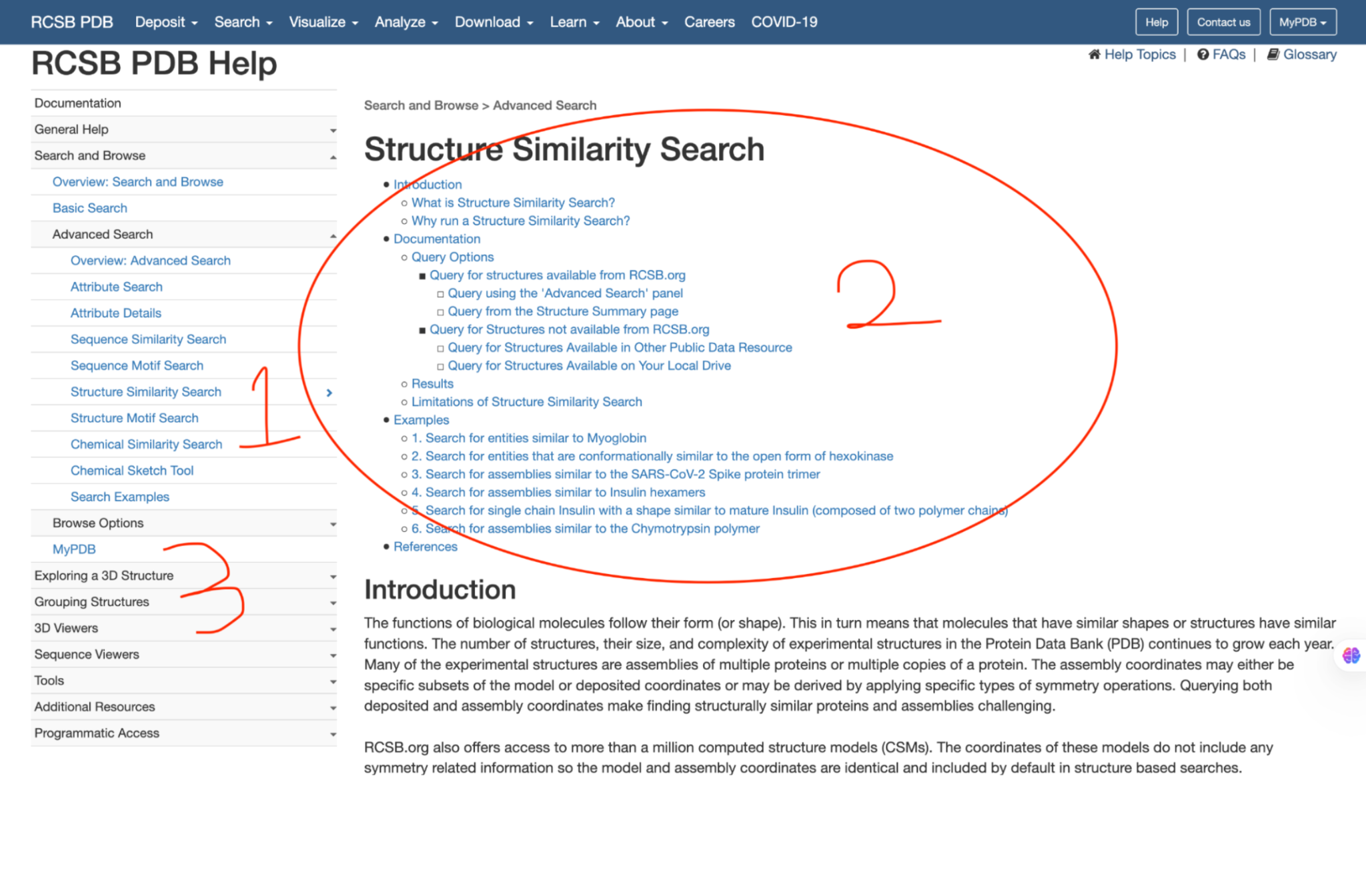
The grid layout organized information into blocks, but right-side sections (Deposition Resources, Learning Resources, Video Tutorials) lacked clear separation — causing cognitive overload. The left-side sidebar clustered related links but insufficient contrast and spacing between subsections created a visually cluttered appearance.
Issue 02
WCAG 2.1 AA Contrast Violations
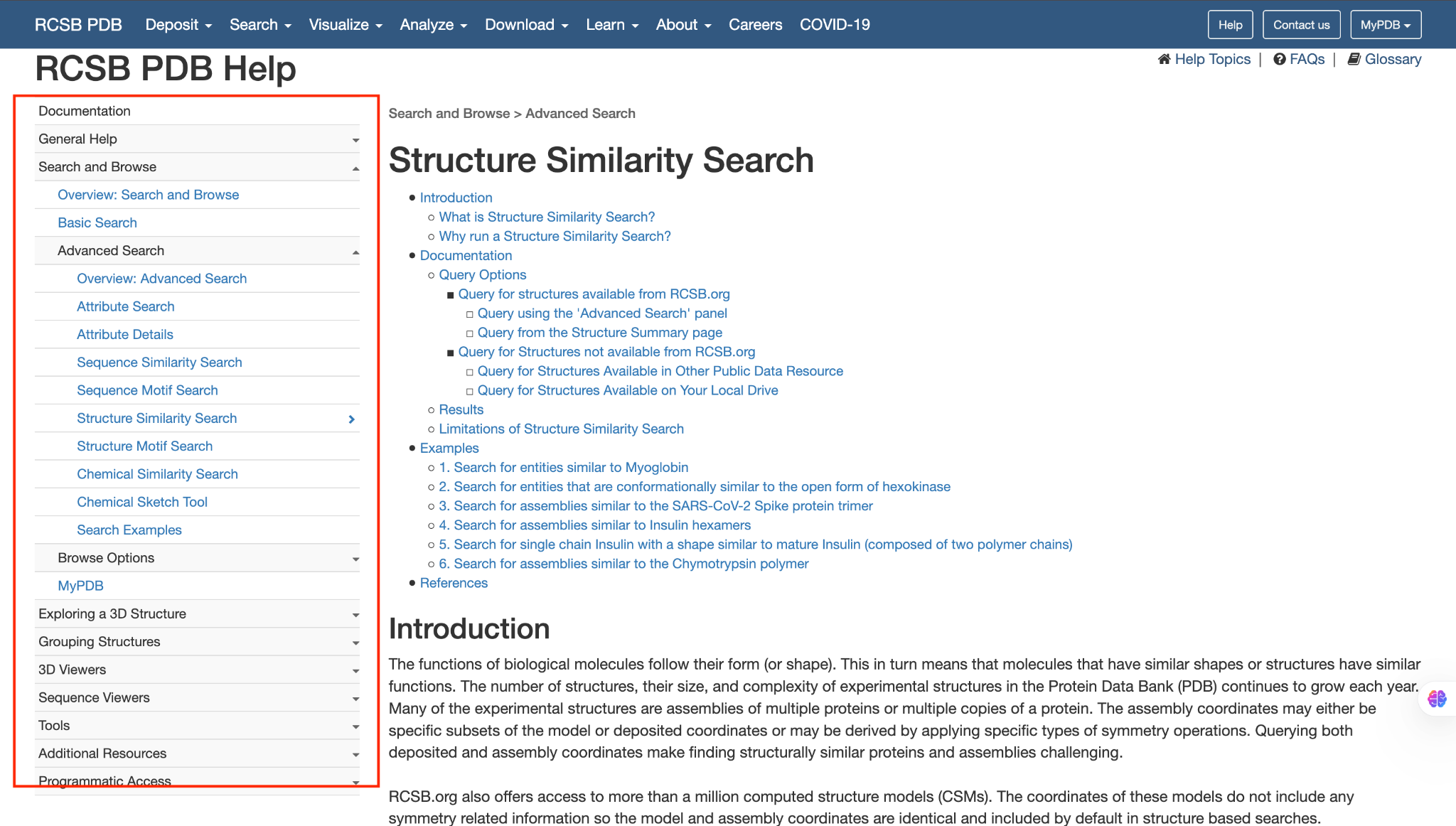
The excessive use of blue across the page lacked sufficient contrast. Lighter shades of blue used in the sidebar navigation failed to meet the WCAG 2.1 AA minimum contrast ratio of 4.5:1 for normal text. 27 elements failed contrast checks across the page.
Issue 03
Typography — Readability & Hierarchy
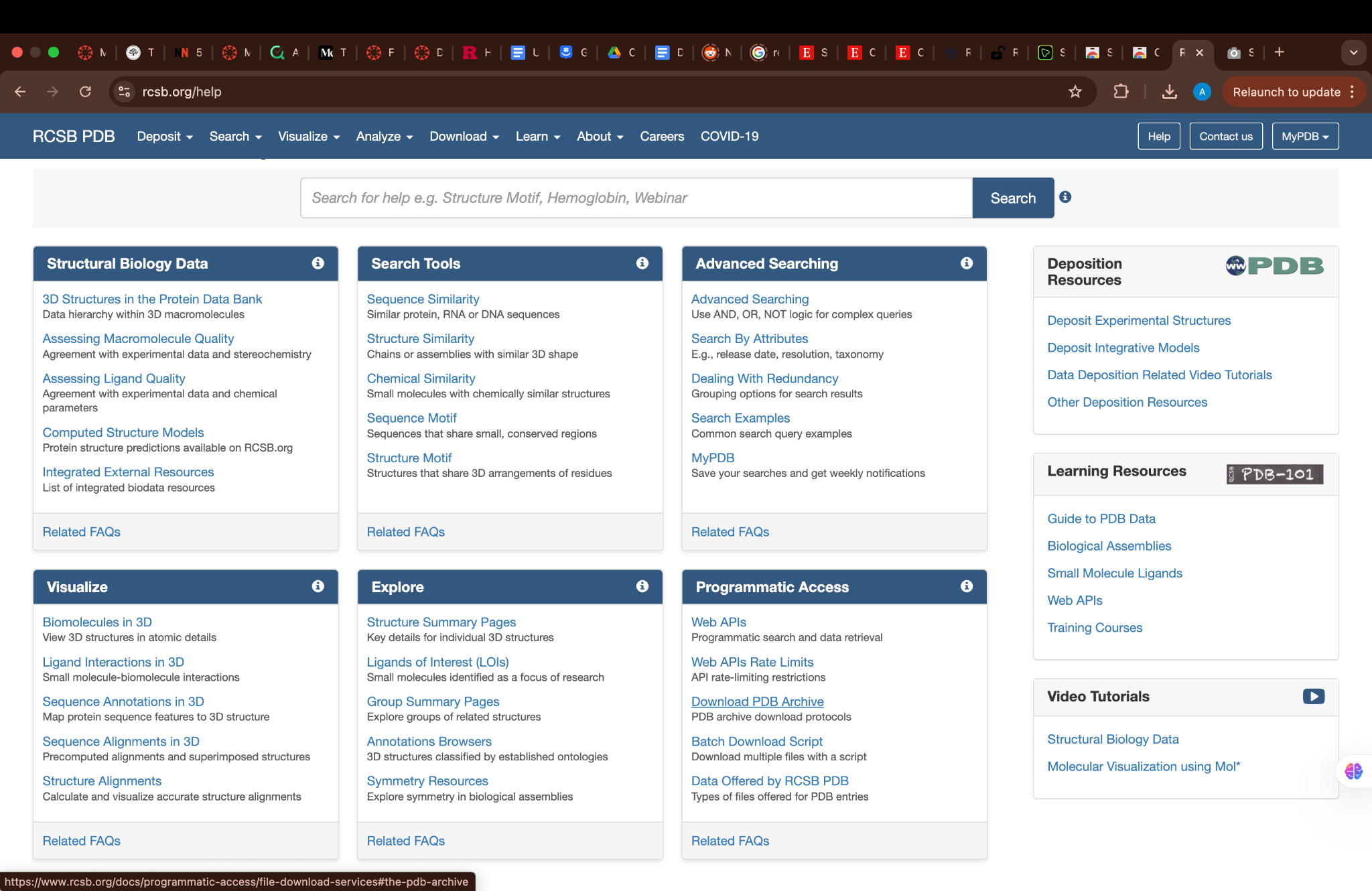
Body text size was notably small across content-rich sections. Headings and subheadings provided some structure, but description text and subcategories lacked distinct differentiation. Bullet points under dense content had insufficient visual contrast — difficult to scan and distinguish from body copy.
Issue 04
Navigation Hierarchy — Proximity & Alignment
Navigation elements on the right side lacked visual weight — easy to miss entirely. Left sidebar menu items were cramped together, hindering quick readability and making it difficult for users to parse the information hierarchy at a glance. 43% of users reported bypassing the sidebar navigation entirely.

07 — Outcomes & Impact
Measured across
20 test sessions
After iterative testing with 5 moderated and 15 unmoderated participants, the redesigned prototype showed significant improvements across all key metrics compared to the original help section.
| Metric | Before | After | Change |
|---|---|---|---|
| Task success rate | 70% | 95% | +25pp |
| Average task completion time | Baseline | –20% faster | Faster |
| User error rate | Baseline | –30% errors | Fewer errors |
| Help page discoverability | 43% bypassed | Improved findability | IA restructure |
| Accessibility compliance | Multiple AA failures | WCAG 2.1 AA | Compliant |
Key Design Decisions
08 — Final Screens
The redesigned
help system
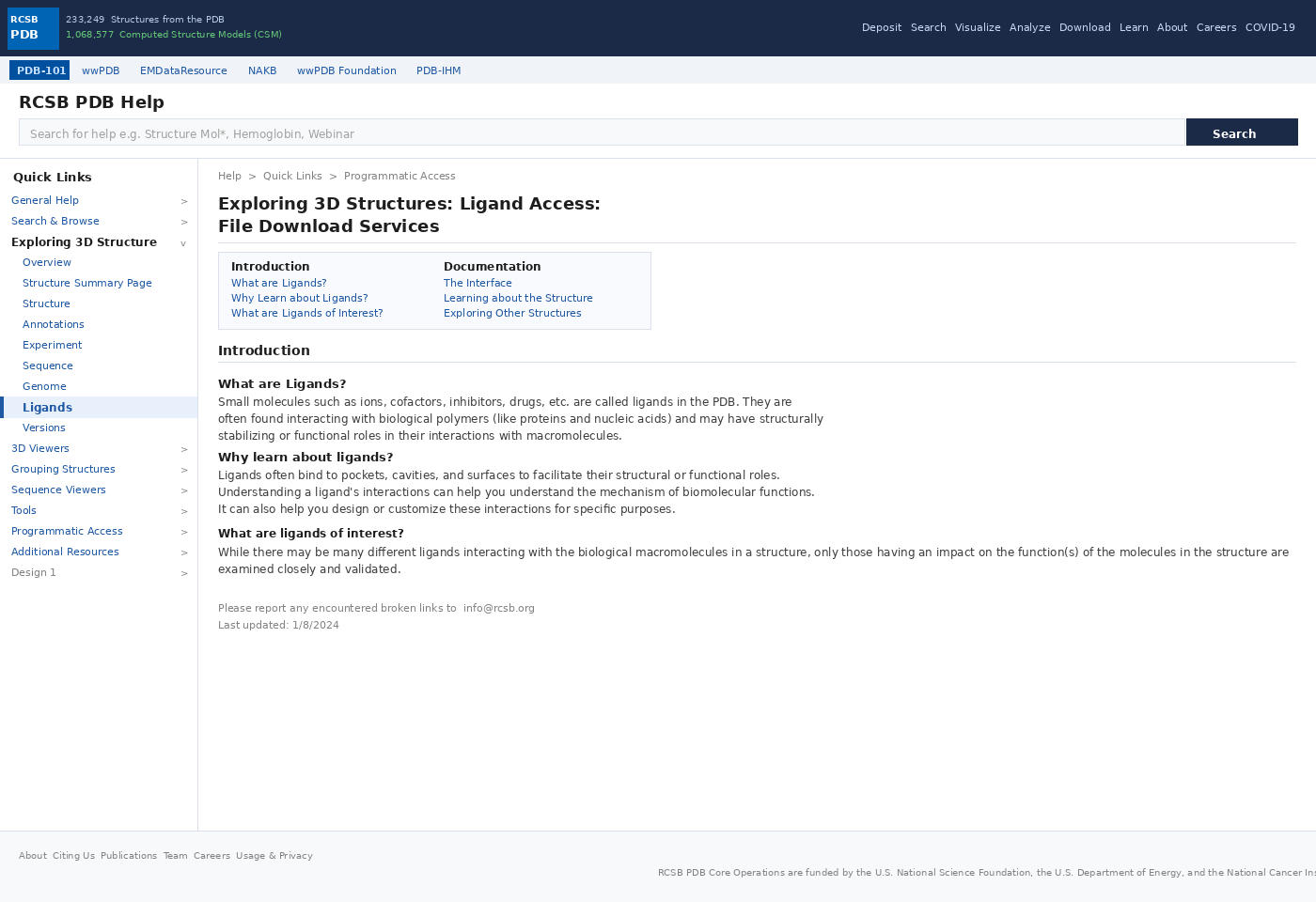
The final prototype addressed every identified pain point — a search-first homepage, restructured 8-category navigation, WCAG-compliant components, and breadcrumb wayfinding throughout. Two design variants (Design 1 and Design 2) were tested and merged into a hybrid approach.
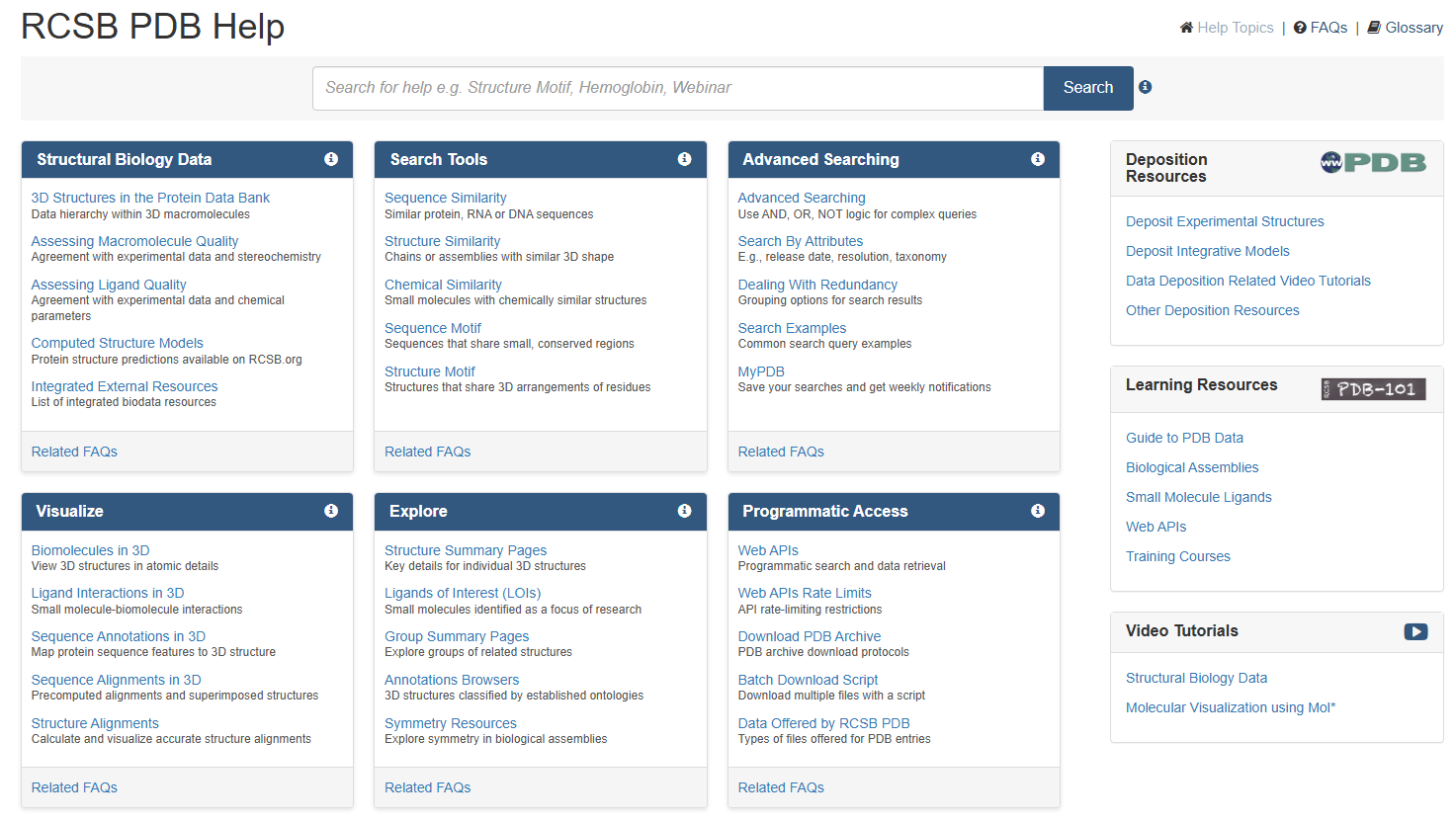
Original help page — flat IA, no visual hierarchy
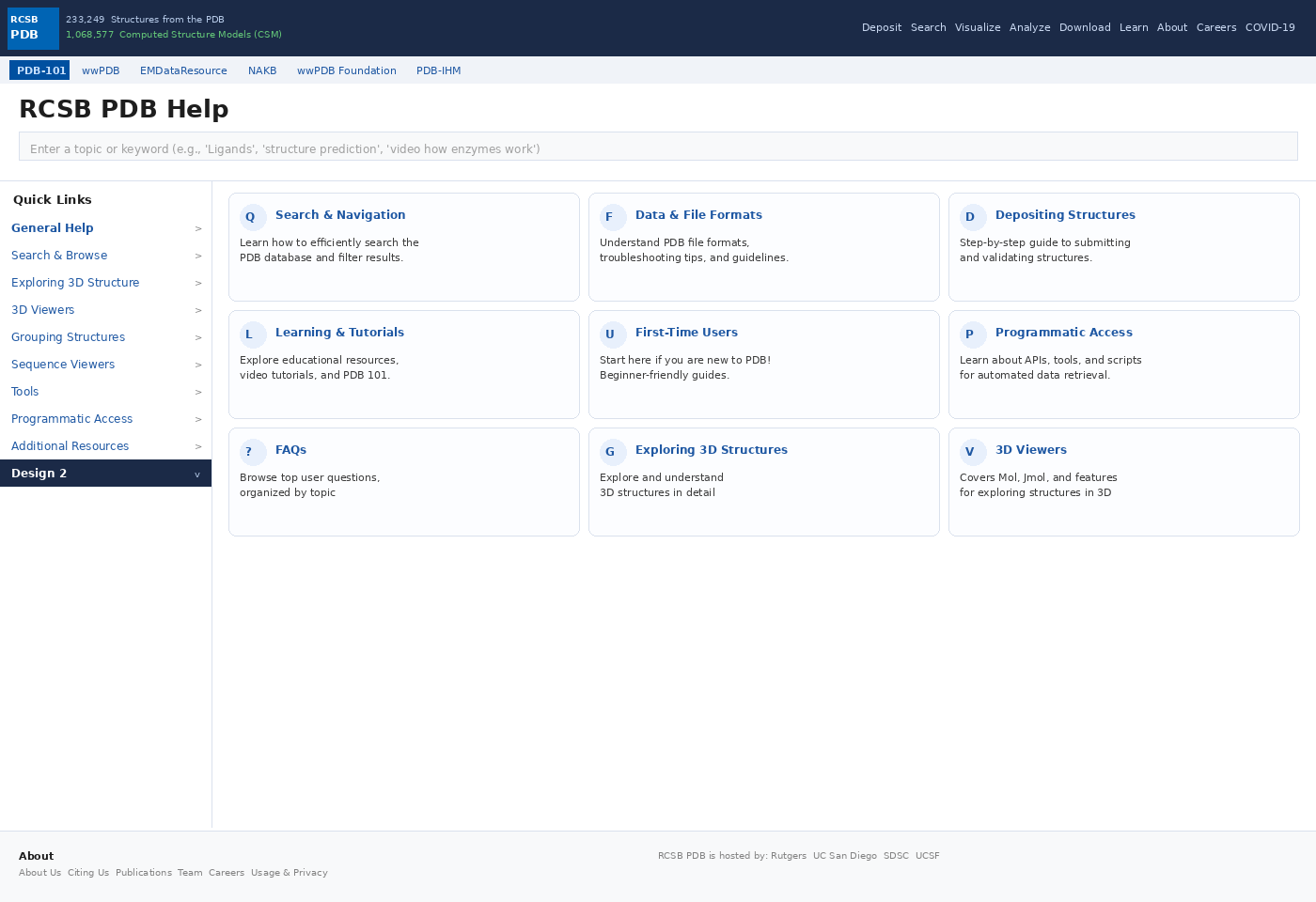
Redesigned homepage — search-first, 8 categories, card grid
Design 1 — Article / Inner Page with Breadcrumb Navigation
Explore the interactive prototype
Click through the full interactive redesign — both Design 1 and Design 2 variants — on Figma.
09 — Reflection
What 16 weeks of
real UX work taught me
This was the most research-intensive project in my portfolio — 16 weeks of structured UX process with real stakeholders, real users, and real constraints. A few things stand out.